Learning Outcomes
i. Comprehend the concept of multitasking and its role in operating systems
ii. Explain the process of resource allocation and its significance in managing system resources
iii. Describe the key aspects of file management, including file organization and access control
iv. Recognize the importance of error handling and system security in maintaining system stability
Introduction
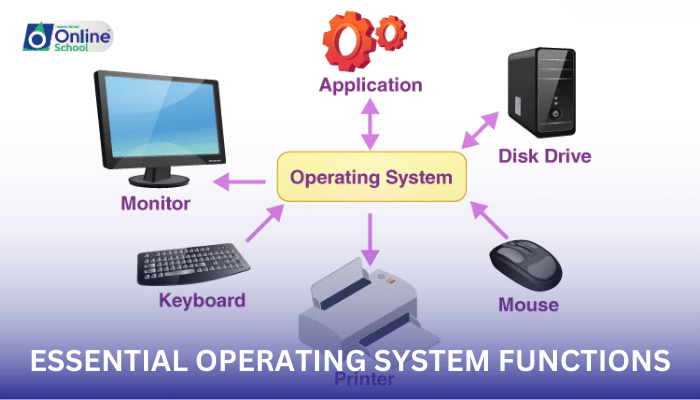
Operating systems orchestrate the intricate workings of a computer, ensuring seamless interaction between hardware and software components. This lesson delves into the essential functions of operating systems, exploring their ability to handle multiple tasks simultaneously, allocate resources efficiently, organize and manage files, and safeguard the system from errors and security threats.
i. Multitasking: Handling Multiple Tasks Simultaneously
Operating systems possess the remarkable ability to handle multiple tasks concurrently, enabling users to run various applications simultaneously. This capability is achieved through multitasking, a technique that allows the operating system to divide the processor's time among multiple processes, ensuring that each task receives a fair share of resources.
ii. Resource Allocation: Managing System Resources Efficiently
Computers possess a finite amount of resources, such as memory, processor time, and storage space. Operating systems play a crucial role in allocating these resources effectively, ensuring that each running program receives the necessary resources to function properly. This process involves prioritizing tasks, managing memory allocation, and preventing conflicts between programs.
iii. File Management: Organizing and Managing Files
Files are the fundamental units of data storage on a computer, and operating systems provide mechanisms for organizing, managing, and accessing these files. File management encompasses tasks such as creating, deleting, renaming, and moving files, as well as organizing them into folders for structured storage. Operating systems also implement access control mechanisms to restrict access to specific files or folders, ensuring data security and privacy.
iv. Error Handling and System Security: Maintaining System Stability
Errors are inevitable in any complex system, and computers are no exception. Operating systems incorporate error handling mechanisms to detect, report, and attempt to recover from errors. These mechanisms ensure that errors don't bring the entire system down and allow users to continue working seamlessly. Additionally, operating systems implement security measures to protect the system from unauthorized access, malware attacks, and data breaches.
Operating systems perform a wide range of essential functions, from multitasking and resource allocation to file management and error handling. These functions are crucial for ensuring the smooth operation of computers, enabling users to work efficiently, access data securely, and enjoy a productive computing experience. By understanding these fundamental concepts, students gain a deeper appreciation for the intricate workings of operating systems and their role in modern computing.
